WooCommerce powers a large share of independent online stores, and its flexibility is a big reason why. You can sell physical goods, digital downloads, subscriptions, and more, and you can extend the platform with thousands of plugins. Among store owners who accept or hold cryptocurrency, a natural question comes up: how do WooCommerce bitcoin shipping labels fit into the picture? Is there a way to pay for postage with crypto, and how does that connect to your orders?
This guide explains the topic step by step. It starts by clearing up a common confusion between two very different uses of crypto in an online store, then walks through how WooCommerce handles shipping, how a crypto-paid label workflow can be built around it, and what to consider around data, accuracy, and record keeping. It is written for store owners who want to understand the moving parts before they set anything up.
Two Different Ways Crypto Meets a WooCommerce Store
The phrase "bitcoin in WooCommerce" can mean two separate things, and mixing them up leads to wasted time.
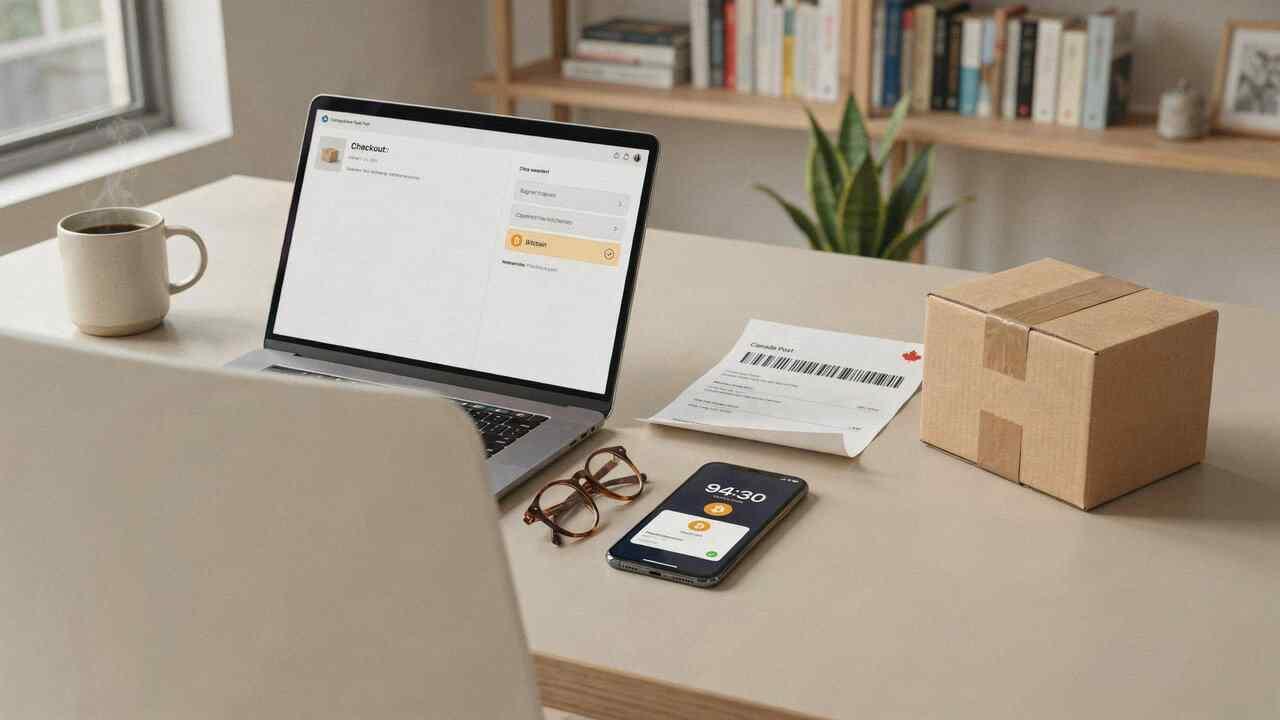
Accepting crypto from customers. This is about the checkout. A payment plugin or gateway lets shoppers pay for their orders in bitcoin or other coins. Money flows from the customer to you.
Paying for postage with crypto. This is about fulfilment. After an order comes in, you need a shipping label, and you choose to buy it with crypto rather than a card. Money flows from you to a shipping label provider.
A store can do either, both, or neither. Accepting bitcoin does not automatically let you buy labels with bitcoin, and buying labels with crypto does not require that customers pay you in crypto. This article focuses on the second use: crypto postage in WooCommerce as a way to fund shipping.
How WooCommerce Handles Shipping by Default
To understand where crypto-paid labels fit, it helps to know what WooCommerce does on its own.
Shipping zones and methods. You define regions, such as a country or state, and assign shipping methods to each zone. Common methods include flat rate, free shipping, and local pickup. Additional plugins can add table rates or live carrier rates.
Product data. Each product can have a weight and dimensions. WooCommerce uses these to calculate shipping costs and, with the right tools, to create labels.
Order records. Every order stores the customer's name, shipping address, chosen shipping method, and items. This is the raw material for any label workflow.
Label tools. WooCommerce offers official and third-party extensions that let you buy and print labels from the order screen. Availability depends on your country and the carriers supported, and these tools typically bill by card or a linked account. Because they are built around conventional payment methods, they do not usually offer a crypto option.
That gap is why some store owners look at a separate workflow, where WooCommerce remains the system for orders, and an outside provider handles crypto-paid labels.
The Basic Workflow: From Order to Label
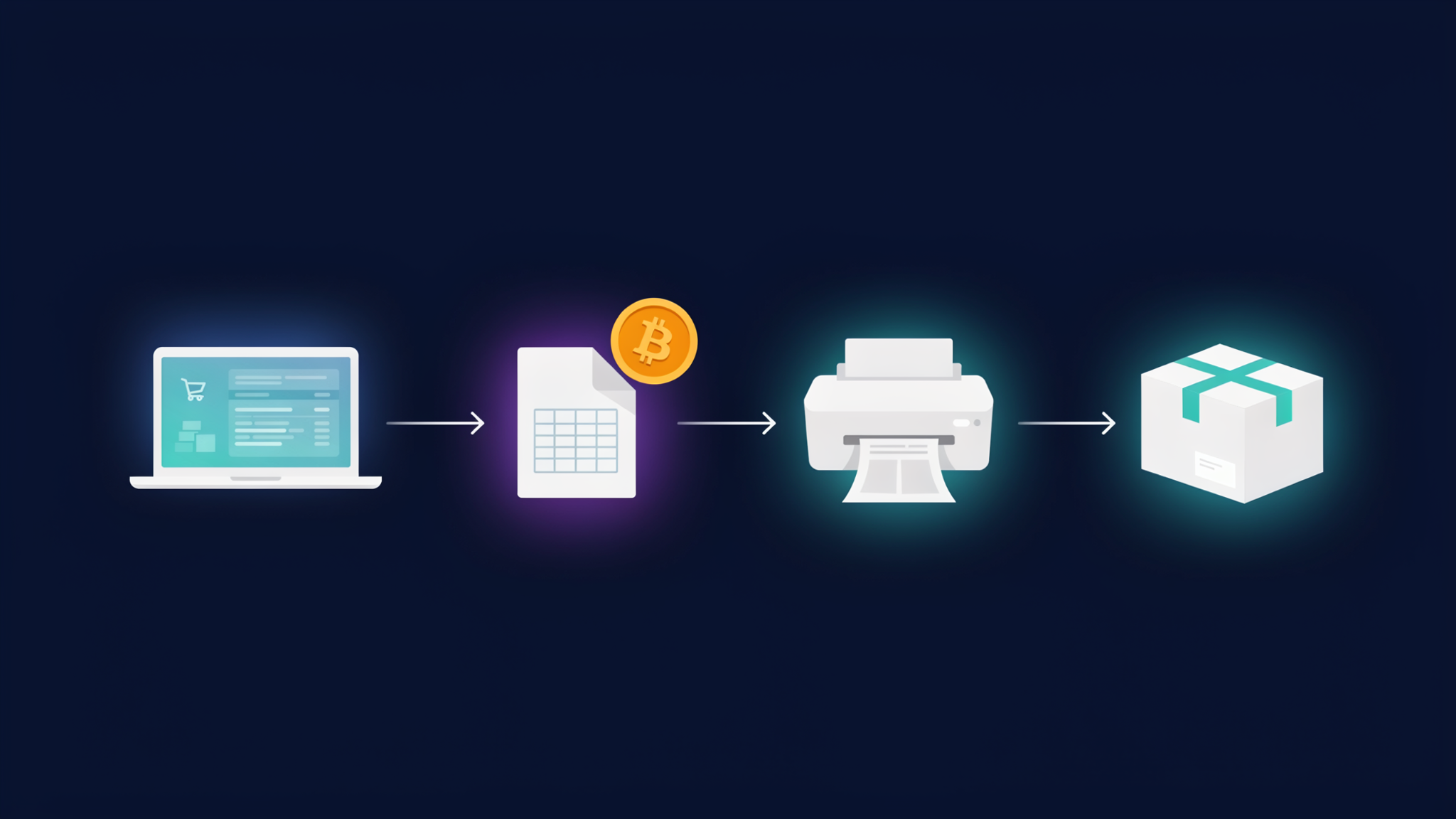
A typical crypto-paid label workflow for a WooCommerce store has five stages.
1. Orders arrive in WooCommerce. Customers check out, and orders move into a status such as Processing. You review them for stock and payment.
2. Export the orders you want to ship. You create a file containing the data a label provider needs. In many setups, this is a CSV file, which is a simple spreadsheet format. Depending on your version and plugins, you might export from an orders export plugin, from WooCommerce's reporting tools, or through the REST API.
3. Import the file to the label provider. The provider reads each row, matches it to a carrier service, and calculates postage. You review the results and correct any address or weight issues.
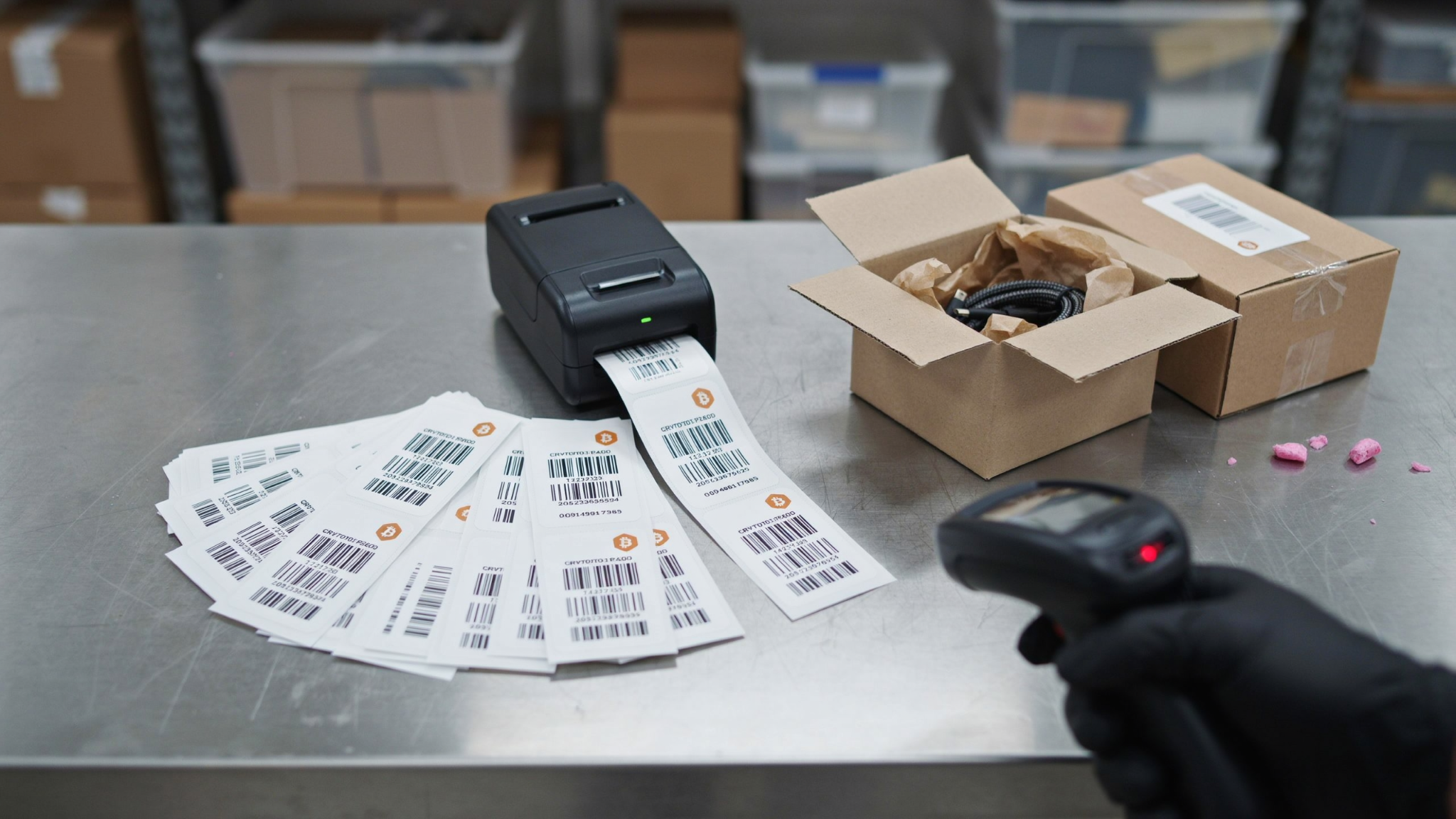
4. Pay with crypto and download labels. You send the total in bitcoin or another supported coin. After confirmation, you download the labels, usually as a single PDF or a set of files.
5. Send tracking information back to WooCommerce. You add tracking numbers to each order, mark it as completed, and let the customer know. This can be manual or automated, depending on your tools.
The process is simple in concept. The details, especially in stages two and five, determine how smooth it feels in practice.
Preparing Your Data: What a Shipping CSV Needs
A CSV file is only as good as its contents. Label providers vary in the columns they require, but most need the following.
- Recipient name. Full name, and company if relevant.
- Address lines. Street address and any apartment or unit number.
- City, state or province, and postal code. Correct formats matter. US ZIP codes, Canadian postal codes, and UK postcodes each have specific patterns.
- Country. Often as a two-letter code such as US, CA, or GB.
- Phone and email. Some carriers or services require them, especially for international parcels.
- Package weight. In the unit the provider expects, such as ounces, pounds, grams, or kilograms.
- Package dimensions. Length, width, and height, if needed for pricing.
- Service level. The carrier service you want, such as ground or express.
- Order number. So you can match labels back to orders.
For international shipments, you may also need a description of the contents, their value, and sometimes a commodity code.
Common problems include mixed units, where WooCommerce is set to kilograms and the provider expects pounds, addresses split across columns in unexpected ways, and special characters that get scrambled when the file is opened and saved in a spreadsheet program. Test with a couple of sample orders before you try a hundred.
Bulk Labels: Working in Batches
Stores with steady order flow benefit from batching. Instead of creating labels one order at a time, you process a group in a single pass.
A batch approach works well when you set a routine. For example, you might export all Processing orders at a set time each day, generate labels together, print them, and schedule one pickup or drop-off. This reduces the number of crypto transactions, which also reduces network fees, because you pay one combined amount rather than many small ones.
When you buy WooCommerce bulk shipping labels with bitcoin, a few practices keep things tidy.
Group by service. Keep domestic and international orders in separate batches, since they need different forms and often different providers.
Review exceptions first. Set aside orders with unusual addresses, oversized items, or restricted contents so they do not hold up the rest.
Keep a log. Note the date, batch size, total cost in your accounting currency, and the crypto amount paid.
Confirm before printing. Make sure the batch total matches what you expect. A single wrong weight can distort a whole set of prices.
Matching Shipping Charges to Label Costs
One challenge for any store that buys labels outside of WooCommerce is aligning what you charge customers with what you actually pay.
If you use flat-rate shipping, you set a fixed price per order or per zone. This is simple but can lead to gaps when a heavy or distant parcel costs more than the fee you charged. If you use table rates, you can vary the price by weight or order total, which tracks costs more closely. If you use live carrier rates, WooCommerce asks a carrier for a quote at checkout, but this generally reflects that carrier's own pricing, which may differ from what a reseller charges.
A good habit is to compare a month of actual label costs with what customers paid for shipping. If you are consistently under-collecting, adjust your rates. If you are over-collecting, you may have room to offer lower shipping or free shipping thresholds.
Sending Tracking Back to Customers
Tracking is a customer-experience essential. Buyers expect a tracking number soon after an order ships, and it reduces "where is my order" messages.
There are several ways to get tracking numbers into WooCommerce.
Manual entry. You copy each tracking number into the order notes or a shipment tracking field. This works for small volumes.
CSV import. Some plugins can import a file that pairs order numbers with tracking numbers and marks the orders as completed.
Provider integrations. Some label providers offer plugins or API connections that push tracking data back automatically.
Custom scripts. Developers can use the WooCommerce REST API to update orders programmatically.
Whichever approach you choose, make sure the customer receives an email or message with a working tracking link. Also, test how the tracking information appears in your order confirmation and account pages.
Technical Considerations
Some technical points can save trouble.
Plugin compatibility. WooCommerce has moved toward High-Performance Order Storage, which changes how order data is stored. If you rely on an export or tracking plugin, check that it supports this feature, and test on a staging copy of your store before making changes on the live site.
API keys and permissions. If you connect an outside service through the REST API, create keys with the minimum permissions required. Read-only access is enough for exporting orders. Write access is only needed when tracking is pushed back.
Backups. Before you set up any integration or bulk update, take a backup. Mistakes in bulk order updates can be painful to undo.
Export filters. Check that your export uses the order statuses and dates you intend, so you do not miss or duplicate orders.
Protecting Customer Data
When you send customer addresses and contact details to a label provider, you are sharing personal data with a third party. That carries responsibilities.
Know your obligations. Depending on where you and your customers are, privacy laws such as GDPR in Europe, PIPEDA in Canada, or state laws in the United States may apply. They generally require that you handle personal data lawfully, keep it secure, and be transparent about how it is used.
Update your privacy policy. Your policy should mention that shipping details are shared with carriers and fulfilment providers.
Share the minimum. Export only the fields the provider needs. If a phone number is not required, leave it out.
Review the provider's practices. Check how long they keep data, whether they share it, and how they protect it.
Secure your files. Exported CSVs contain personal information. Store them securely, avoid sending them through insecure channels, and delete them when they are no longer needed.
Costs, Risks, and Due Diligence
Crypto-paid labels come with the same trade-offs discussed elsewhere in the industry, and a WooCommerce store should consider them carefully.
Compare total costs. Look at postage, provider fees, and network fees. Then compare with the label tools you already use in WooCommerce.
Understand irreversible payments. Crypto transactions generally cannot be reversed. If a provider fails to deliver labels, recovery depends on their policies.
Watch for unrealistic prices. Extremely low rates may signal labels that can be voided by the carrier later, leaving parcels stuck.
Check refund and void policies. Ask what happens if a label is unused, incorrect, or cancelled by the carrier.
Test reliability. Confirm that labels scan and tracking updates appear as expected.
Accounting and Tax Notes
Crypto payments add bookkeeping steps. Each label purchase involves an expense in your accounting currency and the spending of a digital asset.
- Record the fiat value. Note the value of the crypto at the time of payment.
- Track cost basis. In many jurisdictions, spending crypto can create a capital gain or loss, or business income or expense, depending on your circumstances.
- Save receipts. Keep the provider's invoice and the transaction ID.
- Separate categories. Tag shipping costs distinctly from product costs and platform fees.
- Consider professional help. Rules differ across countries and change over time. An accountant familiar with digital assets can tailor advice to your situation.
This is general information and not tax advice.
Conclusion
WooCommerce bitcoin shipping labels are best understood as a workflow rather than a single feature. WooCommerce remains the home of your orders and customer data, while a separate provider accepts crypto and produces the labels. The bridge between them is usually a CSV export, a batch review, a payment, and a tracking update.
For stores that already deal in digital assets, this approach can keep funds in one ecosystem and offer another way to buy postage. It also asks for care: accurate data, compatible plugins, sensible privacy practices, a clear view of total costs, and tidy records. Start with a small pilot, compare the results with your current label process, and keep a backup option in place. Approached that way, crypto postage in WooCommerce can be a dependable addition to your fulfilment routine rather than a source of surprises.
Frequently Asked Questions
Which order statuses should I export?
Most stores export Processing orders. Exclude On hold, Pending payment, and Failed orders, and confirm payment has cleared before a label is bought.
How do I handle orders with several boxes?
Create one label per box and record every tracking number. Some tracking plugins support multiple numbers per order, so check yours.
Do product variations need their own weights?
Yes. Set weight at the variation level when sizes differ, otherwise WooCommerce falls back to the parent product and postage quotes may be wrong.
Can I schedule exports?
Many export plugins can run on a schedule and email or save a file. Store the output securely, because CSVs contain customer addresses.
What if a customer changes their address after export?
Edit the order first, then void the old label if it is unused and buy a new one, so the order and label match.
How do I handle partial shipments and backorders?
Ship what is available, add a note per shipment with its tracking number, and change the status only when everything has left.
Can I test without spending money?
Use a staging copy of the store and one small real label. Some providers offer test modes, but confirm before assuming.
Can I show delivery estimates at checkout?
Yes, with plugins that add estimated dates. Base them on carrier transit times plus your handling time, and avoid promising exact days.
How do returns fit into this?
Use WooCommerce refund tools plus a return authorization process, and decide whether customers get a prepaid return label or pay for their own.
Who pays duties on international orders?
By default the customer often pays on delivery. Some plugins collect at checkout, and rules such as EU or UK VAT thresholds change, so verify before setting expectations.